
How to Withdraw Music Royalties from Your ORB Wallet | Help Center
A step-by-step guide to saving a payout method, confirming a withdrawal by email, and tracking royalty payments in your ORB Wallet.
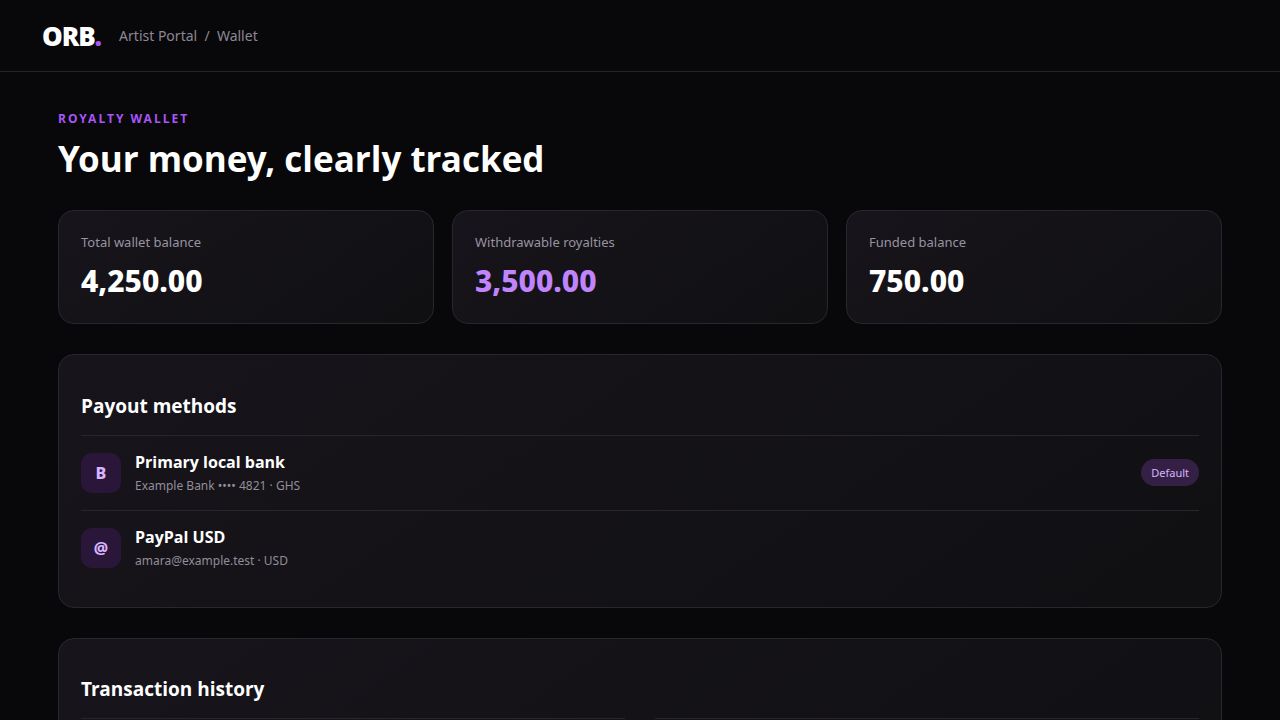
Your ORB Wallet separates funded balance from withdrawable royalties. Money you add for subscriptions, promotion, and other ORB services is not withdrawable. Royalties reported for your music appear as withdrawable earnings.
Before you request a withdrawal
You need an active paid ORB plan, a verified account email, enough withdrawable royalties, and at least one saved payout method. Only one withdrawal can be pending or processing at a time.
Step 1: Open your ORB Wallet
Sign in to your artist portal and open Wallet. The page shows your total wallet balance, funded balance, withdrawable royalties, saved payout methods, and transaction history.
Step 2: Save a payout method
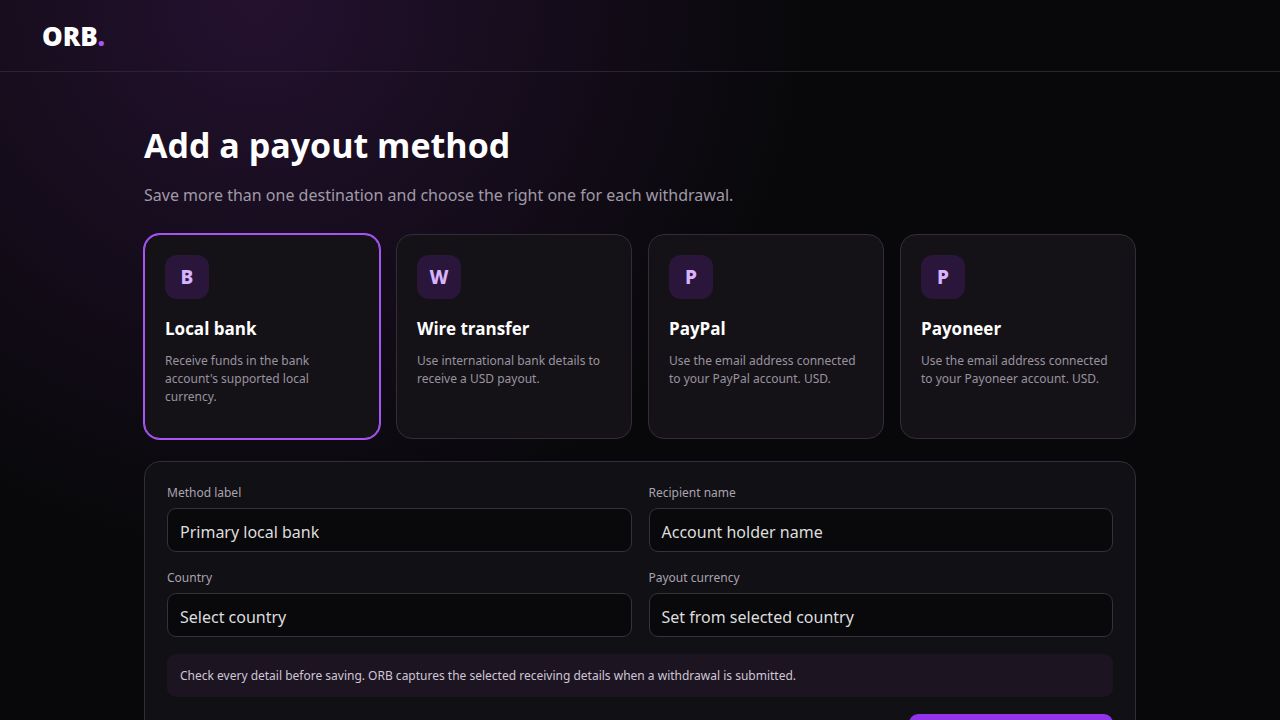
Select Add New in Payout Methods. You can save more than one destination:
- Local bank transfer — paid in the bank account's supported local currency
- Wire transfer — paid in USD
- PayPal — paid in USD
- Payoneer — paid in USD
Check the recipient name and account details carefully. ORB snapshots the selected details when you submit, so editing a saved method later cannot change an existing request.
Step 3: Choose the amount
Select Withdraw Royalties, choose a saved payout method, and enter the amount to withdraw. ORB records and deducts exactly the amount you enter from your withdrawable royalty ledger. The receiving method determines whether staff process the destination in local currency or USD.
Step 4: Confirm by email
Select Send Code. ORB sends a six-digit confirmation code to your verified account email. Enter the code within 10 minutes. A code can only be used once.
Never share your confirmation code with anyone. ORB staff will not ask you to send it by chat or email.
Step 5: Review and submit
Review the amount, recipient, and destination before submitting. Your request then appears as Pending while ORB staff process it. If a request cannot be completed, the reserved amount is returned to your wallet.
How to track credits, spending, and withdrawals
The Transaction History section records money moving into and out of your wallet:
- A green + shows funding, royalties, refunds, or other credits
- A red − shows subscriptions, promotion, studio bookings, track purchases, or other spending
- Withdrawal rows show Pending, Processing, Completed, or Rejected
- Wallet transaction rows show the balance after each credit or debit
What currency will I receive?
Local bank withdrawals use the bank account's supported local currency. PayPal, Payoneer, and wire-transfer destinations use USD. ORB keeps the original requested amount in the wallet ledger and records receiving details separately for staff processing.
Can I change a withdrawal after submitting it?
No. The receiving details are captured when you submit. Contact ORB support if you notice a problem while the request is still pending; do not submit a second request.
Why can I not withdraw my funded balance?
Funded balance is money added for ORB subscriptions, promotion, and services. It is not music royalty income. Only the royalty portion shown as withdrawable can be requested.
Where can I see my withdrawal status?
Open Wallet and scroll to Transaction History. Your withdrawal status and your wallet's credit and debit history remain visible there.