
How to Generate AI Cover Art in ORB | Help Center
Use ORB's paid-plan release workspace to describe, generate, refine, preview, and apply normalized 1400 × 1400 JPEG cover art.
ORB AI Cover Art is an assisted artwork workflow inside a release. It helps you explore a visual direction, refine it, and apply only the result you approve.
Before you start
Use an eligible paid ORB plan and open a release draft in the artist portal. Have the release title, primary artist, genre, and mood in mind. AI Cover Art is accessed in the release's Artwork step; it is not a general-purpose standalone generator. You can still upload your own rights-cleared artwork instead.
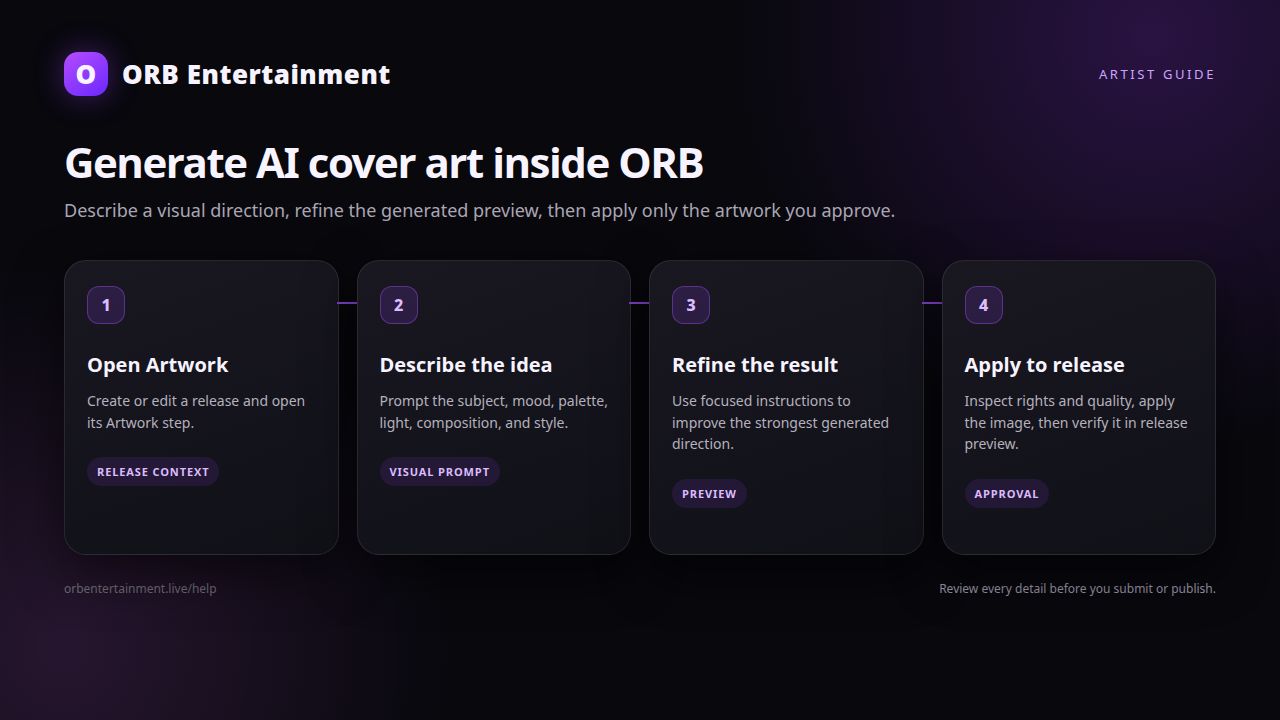
Step 1: Open the artwork step
Open Distribute → Releases, create or edit a release, and select Artwork. Choose the AI cover-art option in the artwork workspace. Confirm the release context before generating so the image is attached to the intended project.
Step 2: Write a visual prompt
Describe subject, setting, mood, color, lighting, composition, and visual style. For example: “a solitary dancer beneath a copper moon, film grain, warm shadows.” Keep the request focused on the feeling and world of the music. Generate a direction and wait for the preview.
Step 3: Refine the direction
Review the generated result, then enter a focused refinement such as “more cinematic light and a calmer horizon.” Compare the new preview with the release concept. Repeat only as needed; a refinement is still a suggestion until you apply it.
Step 4: Preview and apply
When satisfied, choose Apply to release and confirm the preview. ORB normalizes the selected result to a 1400 × 1400 JPEG before applying it. Continue through the release preview to check the final artwork alongside title, artist, and metadata.
Rights and safety notes
AI output may resemble existing people, characters, brands, or artists. Do not request or publish a recognizable person's likeness, protected logo, trademarked character, or another artist's cover style without permission. Check the result for accidental text, watermarks, offensive imagery, misleading claims, and visual similarity before applying it. You remain responsible for the rights and suitability of artwork you submit to stores.
Troubleshooting
- AI option is locked: confirm the account is on an eligible paid plan and that you are editing a release, not browsing the public feature page.
- Generation fails: shorten the prompt, remove prohibited or sensitive requests, and retry after checking your connection.
- Text is distorted: generate the visual without text, then use a rights-cleared design tool; verify any title text against release metadata.
- Artwork looks blurry or cropped: refine the composition with square framing and inspect the normalized 1400 × 1400 preview before applying.
- Wrong release received the image: stop before applying, return to the intended release workspace, and generate again in that context.
Is ORB AI Cover Art included on every plan?
No. AI Cover Art is a paid-plan feature accessed inside an eligible release workspace. Plan availability and limits are enforced in the portal; upgrade if the artwork control is locked.
Does ORB apply AI artwork immediately to my release?
No. ORB shows a preview first. You choose Apply to release, then review the artwork again in the release preview before submitting the release.