
How to Create an ORB-Managed Meta or Google/YouTube Promotion Campaign | Help Center
Learn how to configure, pay for, and submit an ORB-managed Meta or Google/YouTube campaign with a release, audience, schedule, budget, and approved creative.
ORB-managed advertising lets ORB review and manage delivery across Meta (Facebook and Instagram) or Google/YouTube. You choose the campaign details; ORB submits eligible campaigns for review.
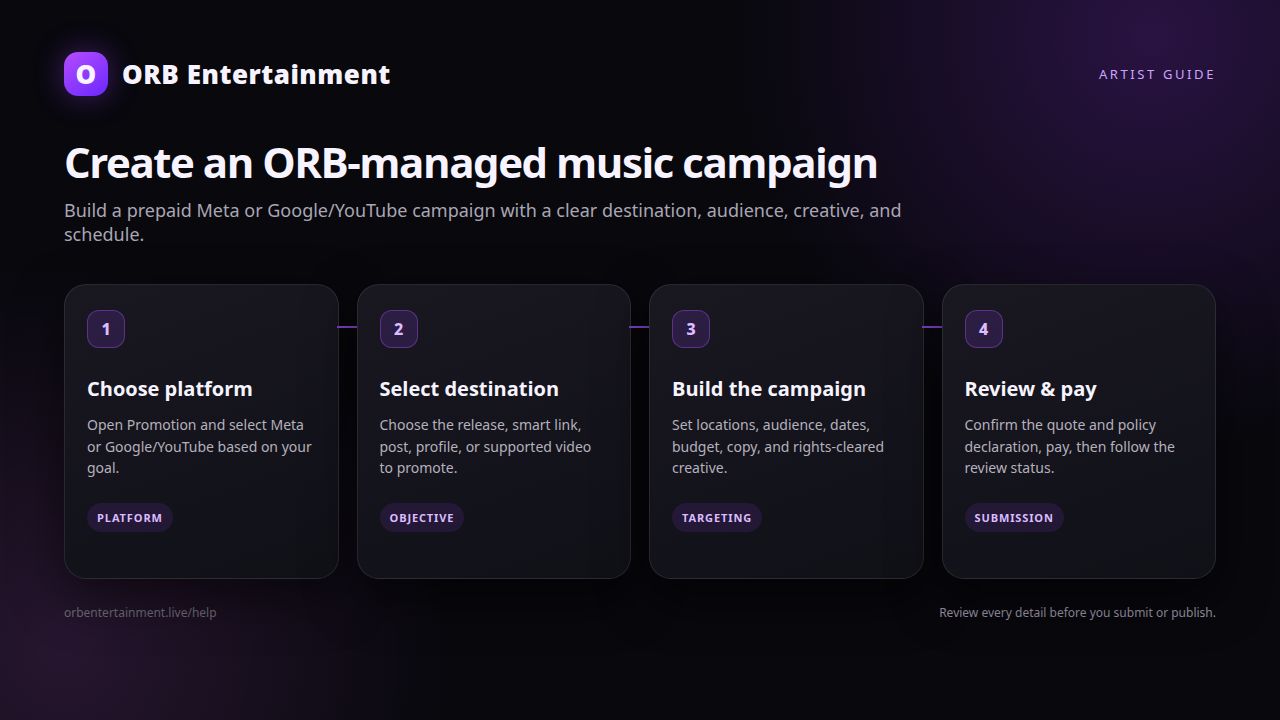
Before you start
Use an Artist Plus or Label & Team plan. Open Portal → Promotion and confirm campaign purchases and the provider you need are available. Prepare an approved ORB release or an eligible destination, a public smart-link or external URL, campaign copy, rights-cleared image or video creative, target locations, audience settings, budget, and future start and end dates. Google/YouTube campaigns require a YouTube video or eligible video creative; Meta can use Facebook/Instagram placements and supported Instagram post or profile objectives.
Step 1: Open campaign creation
Choose Create campaign in Promotion. Select Meta for Facebook/Instagram delivery or Google/YouTube for video campaigns. If you have a saved draft, choose Continue draft; do not create a duplicate checkout.
Step 2: Choose the release and objective
Select the ORB release or choose the supported external-release option and enter its title. For Meta, choose traffic, engagement, or the available profile/post destination mode. For Google/YouTube, the objective is video views and the channel is YouTube. Confirm that the destination opens the song or post you intend to promote.
Step 3: Define audience and schedule
Choose countries, regions, or cities, and review the suggested locations and Meta music interests when offered. Set age range and gender (all genders, women, or men). Choose a future start date and an end date after it. Keep the audience relevant to the music and never target people using sensitive personal assumptions.
Step 4: Add creative and copy
Add the campaign image or video. For Google/YouTube, add the YouTube video link or supported video creative; each video may be included only once. Enter the headline, description, destination URL, and a supported call-to-action. Meta traffic uses Learn More; Google/YouTube displays only its supported buttons. Preview the ad before continuing.
Step 5: Review the quote and pay
Review the media budget, service fee, payment currency, duration, audience, destination, channels, creative, and total. Google/YouTube has a provider minimum budget; the setup screen shows the current minimum. Pay from an eligible wallet balance or choose card/bank payment. Payment creates the order but does not guarantee approval or impressions.
Step 6: Submit and follow status
Confirm the rights and advertising policy declaration and submit campaign details after payment. The list may show Waiting for details, Waiting for review, Scheduled, Active, Paused, Completed, Rejected, or Failed. ORB reviews the campaign before provider delivery; a provider may also review the ad. Use View details for budget, schedule, locations, channels, button, destination, and creative. Edits can pause delivery and start a new review.
Rights, safety, and advertising notes
You must own or license every recording, image, video, logo, performer likeness, and destination you submit. Do not use misleading claims, copyrighted material without permission, discriminatory targeting, or guaranteed-stream language. Advertising results vary and ORB does not guarantee streams, followers, views, or editorial placement. Never share payment details or account passwords in campaign notes.
Troubleshooting
- Promotion is locked: upgrade to Artist Plus or Label & Team; Free accounts cannot create paid campaigns.
- Provider unavailable: Meta or Google/YouTube setup may be paused or not configured; try again later.
- Google budget warning: increase the media budget to the current Google/YouTube minimum.
- Creative rejected: verify the file, rights, destination, claims, and platform policy; replace the creative and resubmit.
- Campaign says Waiting for details: payment succeeded but required setup was not completed; select Finish setup.
- Campaign is Active but results are low: check the destination, audience size, creative and schedule; delivery and results depend on platform auctions and review.
How long does ORB take to review a promotion campaign?
Your paid campaign first shows Waiting for review while ORB checks the details. Provider review and activation timing vary, so a paid order is not the same as an active campaign. Watch the campaign status and any review reason in Promotion.
Can I change a campaign after it is active?
Use Edit campaign when the status permits. Changes to creative, destination, copy, or audience may pause delivery and trigger a new ORB and provider review. For a finished campaign, use Revive campaign when available to choose an additional budget and future schedule.