
How to Create and Submit a Music Release on ORB | Help Center
Follow ORB's release workspace from a new draft through artwork, metadata, lossless tracks, preview, declarations, and submission to stores.
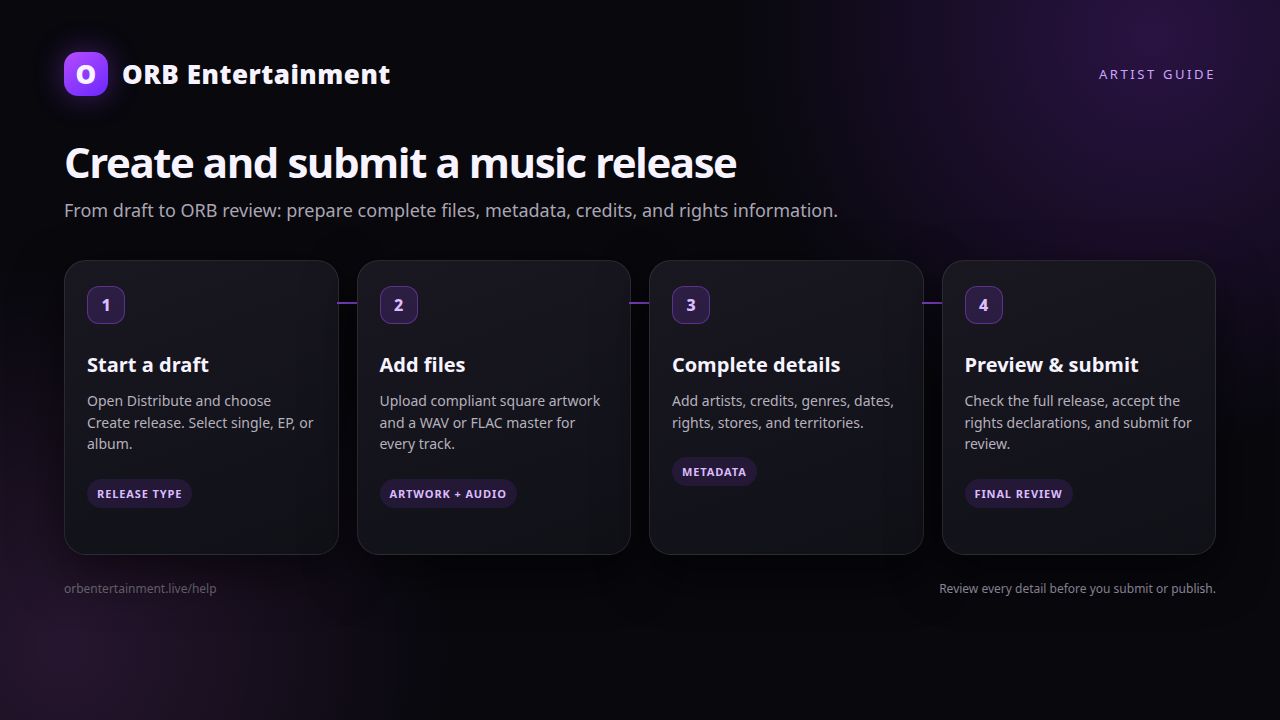
Create one complete release in ORB's artist portal, then submit it for review and distribution.
Before you start
Sign in to your artist portal and confirm you have an available track credit for each track you plan to submit. A draft does not use a credit; each approved track does. Prepare a square cover image, lossless WAV or FLAC masters, exact artist and contributor credits, a release date at least two weeks away, and your copyright and publishing information. You can create a release on an eligible plan; paid-plan features such as custom publishing details or lyrics may be gated by your plan.
Step 1: Start a release draft
Open Distribute in the portal and choose Create release. Select the release type (single, EP, or album), enter the release title, and add the primary artist. Keep artist names, dates, emojis, and version information out of the title; add featured artists in the appropriate artist or credit field instead.
Step 2: Add artwork
Open Artwork and upload a JPG, JPEG, PNG, GIF, TIFF, or WEBP. ORB normalizes the artwork to 1400 × 1400; upload a clear square source for the best result. Review the crop and make sure there are no blurry pixels, uneven borders, unauthorized logos, URLs, or branding.
Step 3: Complete release information
In Release Information, choose the release date, language, primary and optional secondary genre, and explicit-content setting. Add a record label name using only letters and numbers where required. Enter the copyright line and year, publishing-rights line, catalog number, original release date if previously released, territories, and store selection when those options are shown. ORB generates a UPC/EAN for a new release unless you provide a valid existing code.
Step 4: Upload and credit every track
Open Manage Tracks, upload each WAV or FLAC master, and wait for it to finish processing. Each track must be 30 seconds to 30 minutes. Enter the track title, language, explicit setting, lyrics (when your plan permits), and existing ISRC if you have one. Add the main artist, featured artists, writers, composers, producers, publishers, engineers, and other contributors with their correct roles and royalty shares. Review the track order for an EP or album.
Step 5: Preview and submit
Choose Preview Release and check the cover, title, artist, metadata, track order, audio, credits, stores, territories, and date. Select the required authenticity, promotion, and rights declarations, then choose Submit. The release status changes from Draft to Pending (or Under Review after distributor review), then may show Submitted to Stores, Approved, or Live on Platforms. A future-dated approved release is shown as Approved, not Live. If ORB needs evidence, the status can be Needs Documentation; a rejected release is shown as Disapproved.
Rights and safety checklist
Only submit recordings, names, artwork, samples, lyrics, and logos that you own or have written permission to use. Declare whether the recording is original or licensed, retain written licenses and split agreements, and do not upload a beat, cover, remix, or sample without the required permission. Never impersonate another artist or use misleading metadata. Mark explicit audio and artwork accurately, and do not include personal contact details in public lyrics or artwork.
Troubleshooting
- Audio rejected: confirm the actual file is WAV or FLAC, not an MP3 renamed with another extension, and that it is 30 seconds–30 minutes.
- Artwork will not apply: use a readable image file, remove unauthorized logos or URLs, and upload a clearer square source.
- Submit is disabled: check every required field, track, contributor share, rights declaration, and available credit.
- Status is Pending or Under Review: do not create a duplicate release; ORB is reviewing it. Respond to any documentation request in the release workspace.
- A scheduled release is not Live: Approved means the chosen future date has not arrived; stores also control their own processing time.
How long does ORB take to review a submitted release?
ORB targets review of submitted releases within 48 hours, but stores control their own delivery and availability timing. Submit early—at least two weeks before your desired date—to leave room for corrections.
Can I edit a release after I submit it?
Usually, changes can be made only if ORB requests them. Check the release status and follow the requested correction instead of submitting a duplicate. After a release is live, use the available takedown or correction process and contact support when metadata needs a controlled change.